

Bruno 3.0.0+: Global environments are now stored within each workspace in the
environments/ folder, making them version-controllable and workspace-scoped.Bruno 2.x and earlier: Global environments are stored in the application’s data folder. You can access them by visiting the About section from Preferences and navigating to the AppData path location.Storage Location
Bruno 3.0.0+ (Workspace-based)
In Bruno 3.0.0 and later, global environments are stored as.yml files in the environments/ directory within your workspace:
- Version Control - Global environments can be committed to Git alongside your workspace
- Team Collaboration - Share environments with team members through your repository
- Workspace Isolation - Each workspace maintains its own set of global environments
Bruno 2.x and Earlier (Application-based)
In earlier versions, global environments are stored in Bruno’s application data folder and are shared across all collections in the application.Create a Global Environment Variable
- Go to the Environments section (top right corner).
- Navigate to the Global tab and click on Create.
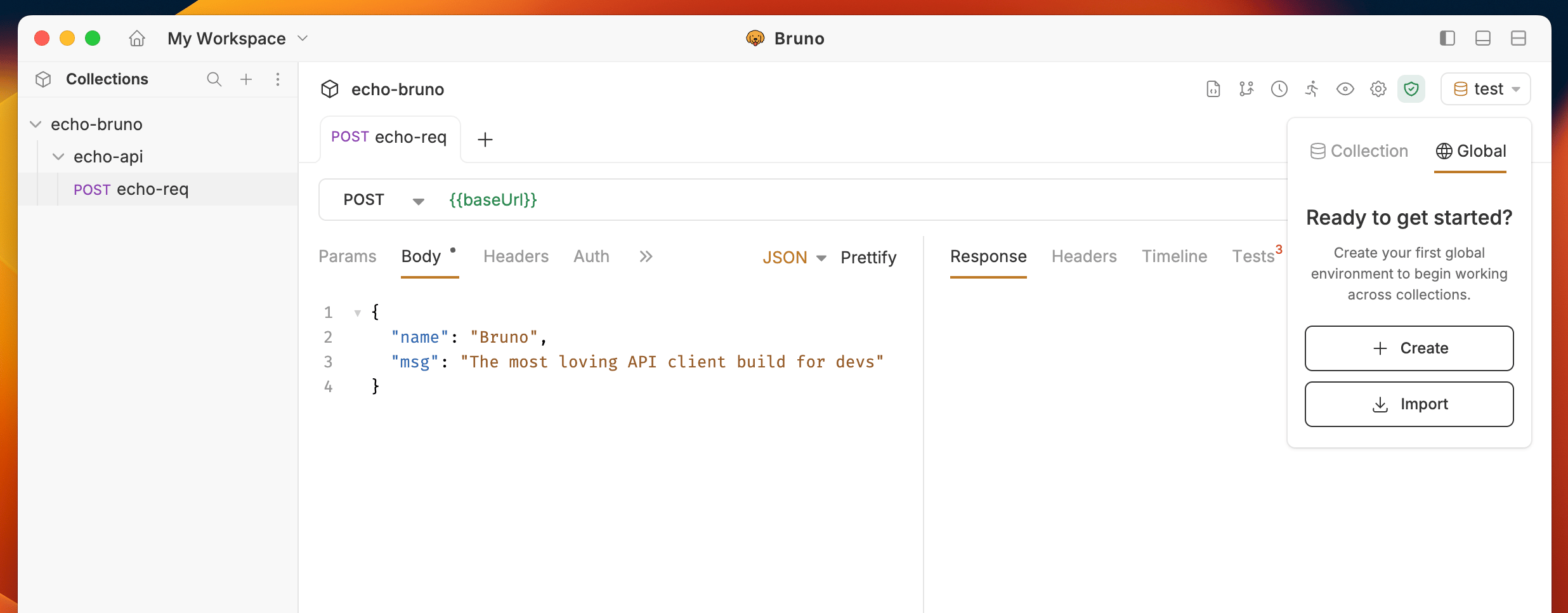
- (Optional) If you need to import an existing environment, you can use the Import Environment option.
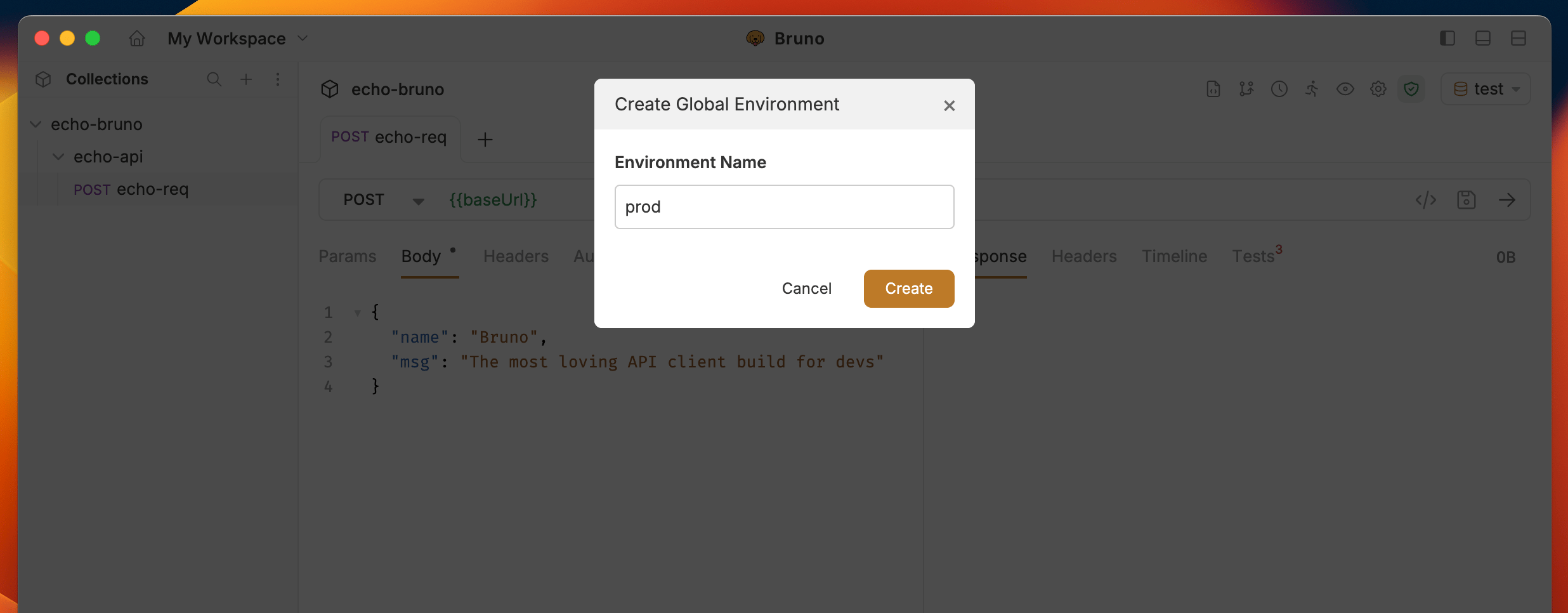
- Enter a name for your environment and click Create.
- Add a variable by specifying the Name, Value, and an optional Description for what the variable represents.
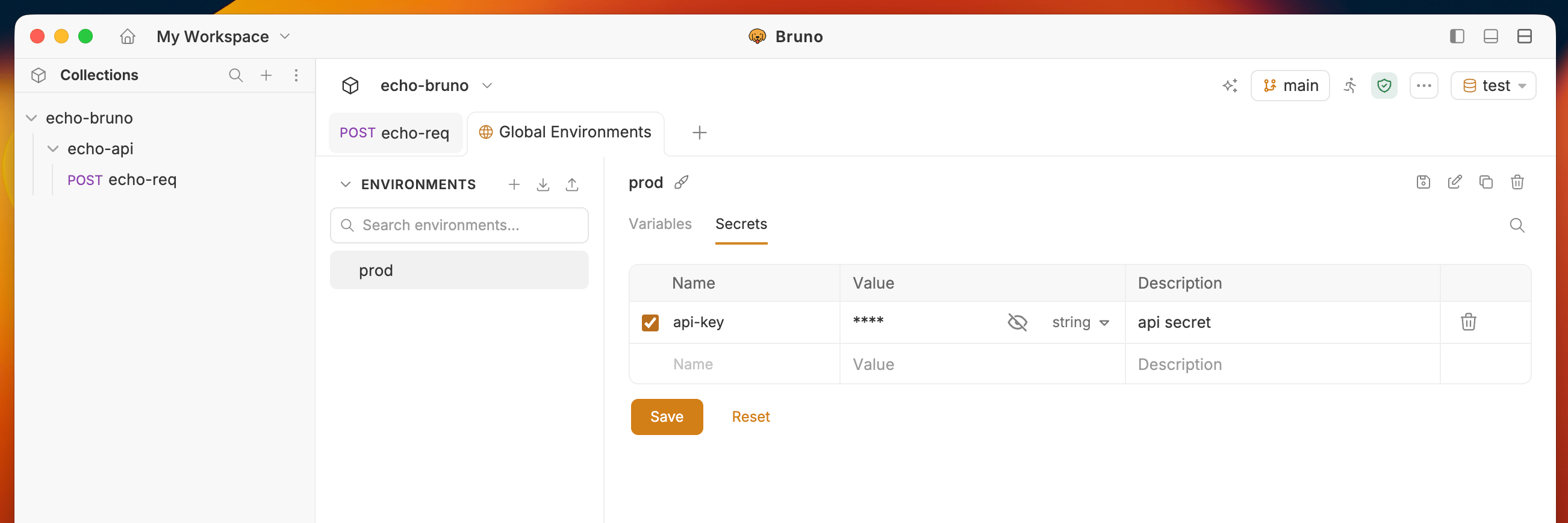
- Click Save.
Using Global Environment Variables
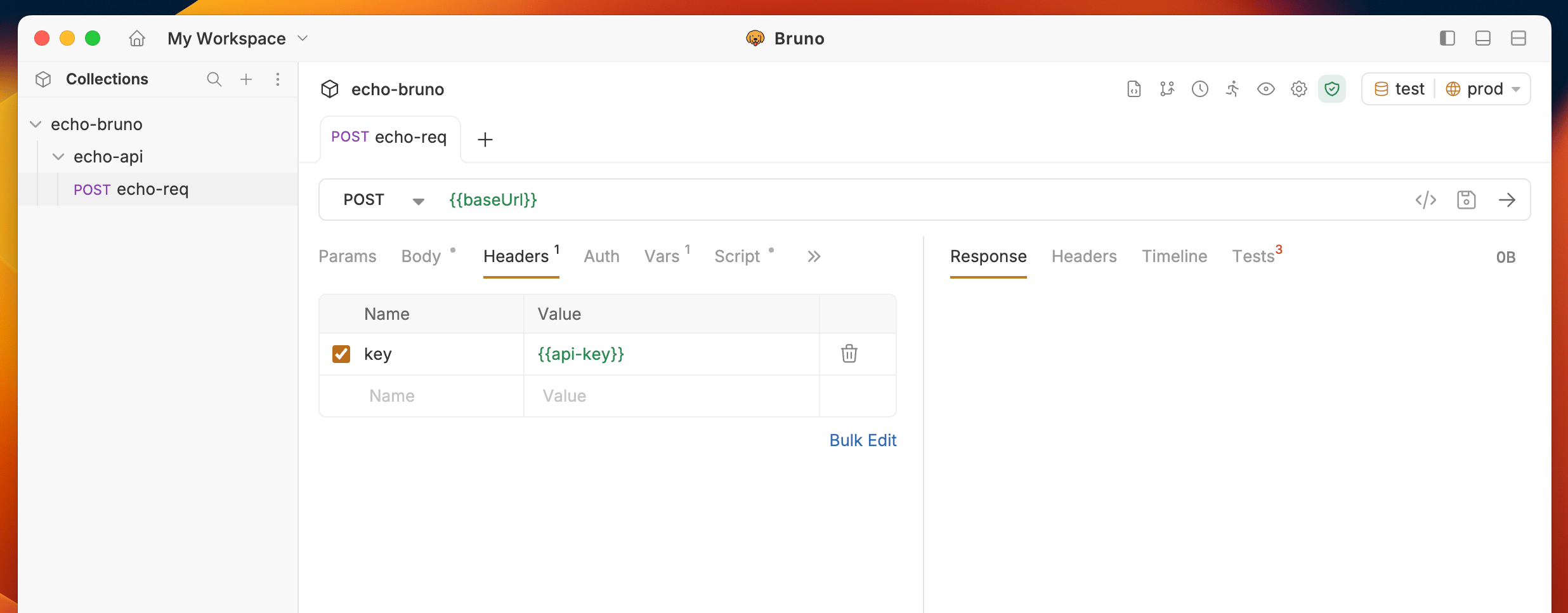
To use a global environment variable, reference it using the format{{var_name}} in any request or collection. These variables can be combined with other variables and used throughout your workspace, making them ideal for consistent value sharing.
Using process.env in global environments
You can reference process environment variables ((variables from a.env file)) inside global environment variable values using the {{process.env.VAR_NAME}} syntax. Bruno resolves these references from the workspace-level .env file, so your secrets remain out of version control while still being usable in global environments.
For example, you can set a global environment variable value to:
.env file. See Process Environment Variables and DotEnv File for more details on managing .env files.
Selecting a Global Environment
To activate a global environment:- Click on the Environments dropdown in the top right corner
- Navigate to the Global tab
- Select the environment you want to activate
Environment inheritance
A global environment can inherit variables from another global environment in the same workspace. Use this to define shared values once in a base environment and override only the names that differ per environment. Set the parent from the environment editor: pick a global environment from the same workspace under the current environment’s settings, then save. Inherited variables show in a collapsible Inherited section with their source, are read-only, and are overridden by any same-named variable in the current environment. Bruno warns if the referenced parent is missing so the reference is not silently dropped. Inheritance resolves at request time and applies in requests, scripts, collection runs, code generation, and Bruno CLI runs. The parent reference is stored in the environment file and travels with the workspace on version control, import, and export:production.yml
Upgrading from Bruno 2.x to 3.0.0
When you upgrade to Bruno 3.0.0, your existing global environments from the application data folder can be migrated to the Default Workspace automatically. Custom workspaces will start with no global environments.
- Default Workspace - Bruno will migrate your existing global environments to the Default Workspace’s
environments/folder - Custom Workspaces - You will need to manually recreate or import global environments for any new custom workspaces you create
- Export/Import - You can export environments from one workspace and import them into another
Import/Export Global Environment Variables
For detailed instructions on importing and exporting global environment variables, see the Import/Export Environments guide.